
The Complete Eidos Edge Bundle From Blockout to Game-Ready
Thank you for buying the bundle. This guide gets Handy, MatricX PRO and MatricX Bake installed in a few minutes, then walks one model through all three. Each add-on also has its own full manual — see section 08.
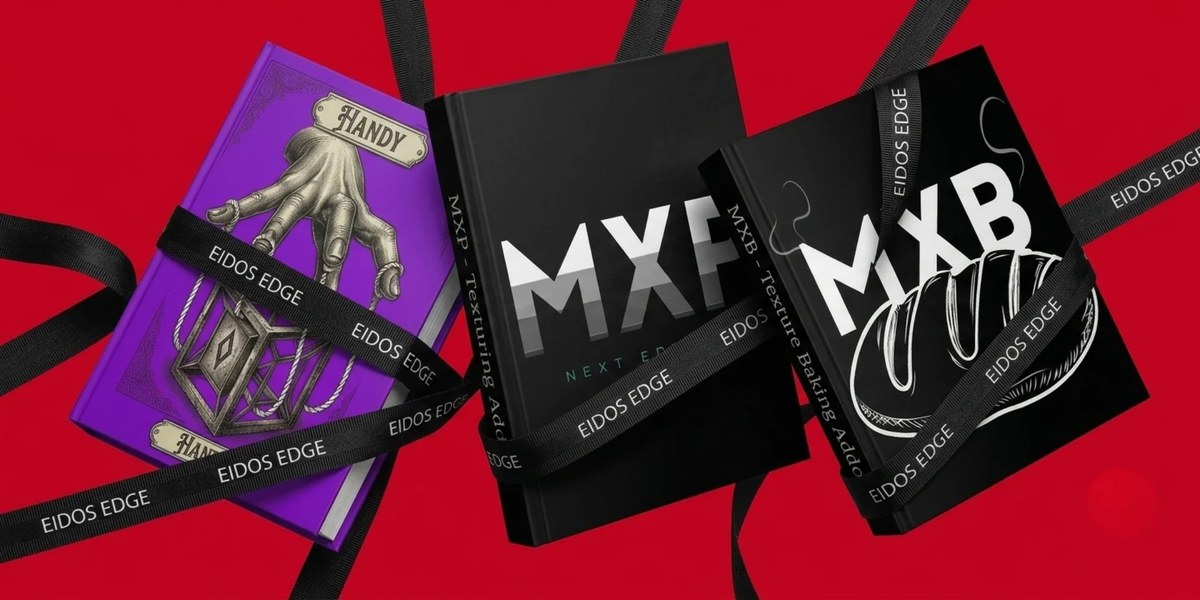
01What's in your download
| File | What it is |
|---|---|
Handy-1.0.0.zip | Handy — hard-surface modeling tools. One file installs as an extension or a classic add-on. |
MatricX_PRO_2.1.0_Blender_Extension.zipMatricX_PRO_2.1.0_Addon.zip | MatricX PRO — the same add-on in two formats. Install only one of them. |
MatricX_Assets_2.1.0.zip | The MatricX asset pack: materials, imperfection textures and the MatricX Decals library. Required by MatricX PRO. |
MatricX_PRO_2.1_User_Guide.pdf | The full MatricX PRO manual. |
MatricX_Bake_1.7.9_Blender_Extension.zipMatricX_Bake_1.7.9_Addon.zip | MatricX Bake — the same add-on in two formats. Install only one of them. |
02Requirements
| Add-on | Blender | Tested on |
|---|---|---|
| Handy 1.0 | 4.0 or newer | 4.0, 4.5, 5.2 |
| MatricX PRO 2.1 | 4.5 or newer | 4.5, 5.1, 5.2 |
| MatricX Bake 1.7.9 | 4.5 or newer | 4.5, 5.1, 5.2 |
03Install in five minutes
Install in this order, then restart Blender once at the end.
- Handy. Blender 4.2 or newer: Edit > Preferences > Get Extensions > the arrow at the top right > Install from Disk >
Handy-1.0.0.zip. On Blender 4.0 or 4.1: Edit > Preferences > Add-ons > Install, then the same zip. If an older Handy is installed, remove it first. - MatricX PRO. Install one of the two PRO zips the same way. Never enable the classic add-on and the extension at the same time.
- The MatricX asset pack. Extract
MatricX_Assets_2.1.0.zipto a normal folder (for example Documents). In the 3D View press N, open the MatricX PRO tab, expand Runtime Assets and click Locate Asset Pack. Select the extractedMatricX_Assets_2.1.0folder — MatricX remembers it. - MatricX Bake. Install one of the two Bake zips. The extension asks for two permissions: Network (only for the optional MinistryOfFlat download) and Files (to write baked maps and exports).
- Restart Blender, then check that all three are there (below).
| Check | Where |
|---|---|
| Handy | Hover the 3D View and press Ctrl+Shift+H — the Handy menu opens. |
| MatricX PRO | N in the 3D View > MatricX PRO tab. Runtime Assets shows your asset pack folder. |
| MatricX Bake | N in the 3D View > MatricX Bake tab. |
.var sandbox, then use Locate Asset Pack.
Asset pack not found? Locate Asset Pack accepts the pack folder itself, the folder you extracted it into, or any of its subfolders. If it rejects a folder, the reason appears in Blender's status bar.
04One model, three add-ons
Here's the whole pipeline on one hard-surface prop: model it with Handy, texture it with MatricX PRO, then bake it into a game-ready asset with MatricX Bake.

Handy
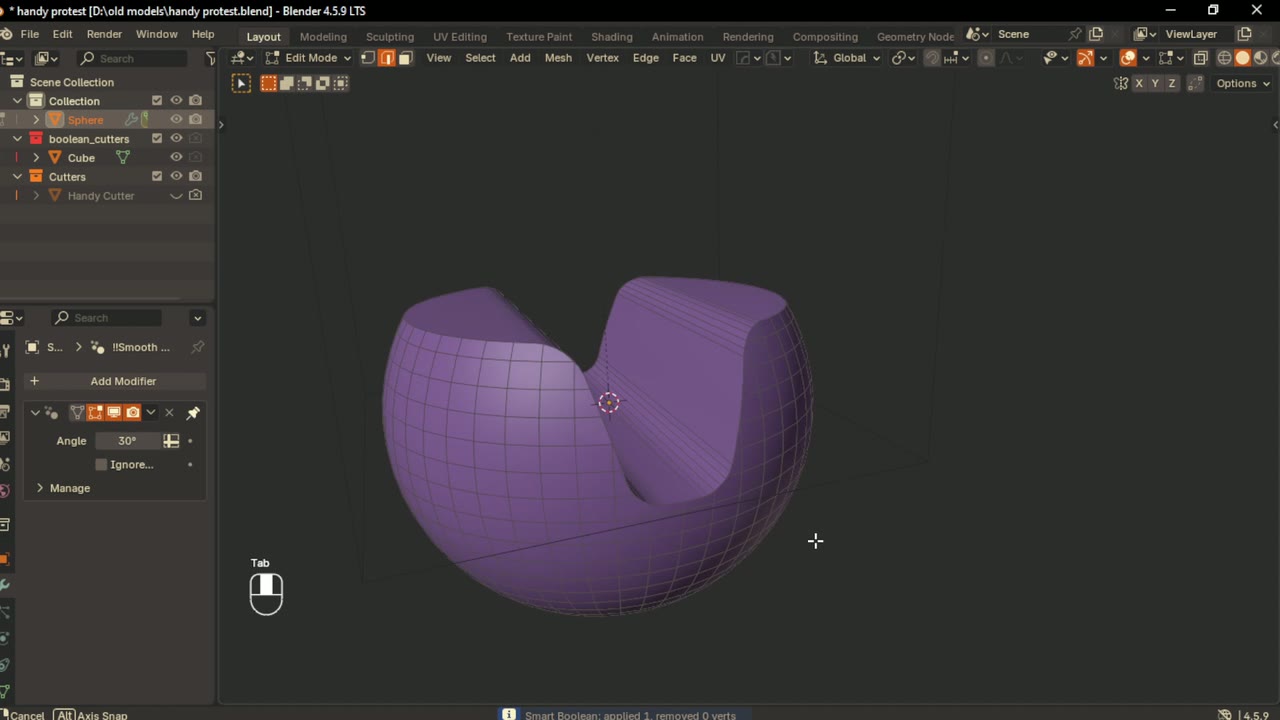
- Press Ctrl+Shift+H. Under Create, place a cube, cylinder or sphere on the surface under the mouse — Ctrl+Click to cut, Shift+Click to add. The cutters stay live.
- When the shape is right, run Smart Boolean: it applies the Booleans, cleans up the result and shades it by angle.
- Use Select Seam to pick the seam, then Offset Cut to add support loops on both sides of it.
- Fix bevels with UnBevel, inset panels with Smart Inset, and finish with Clean Up.

MatricX PRO
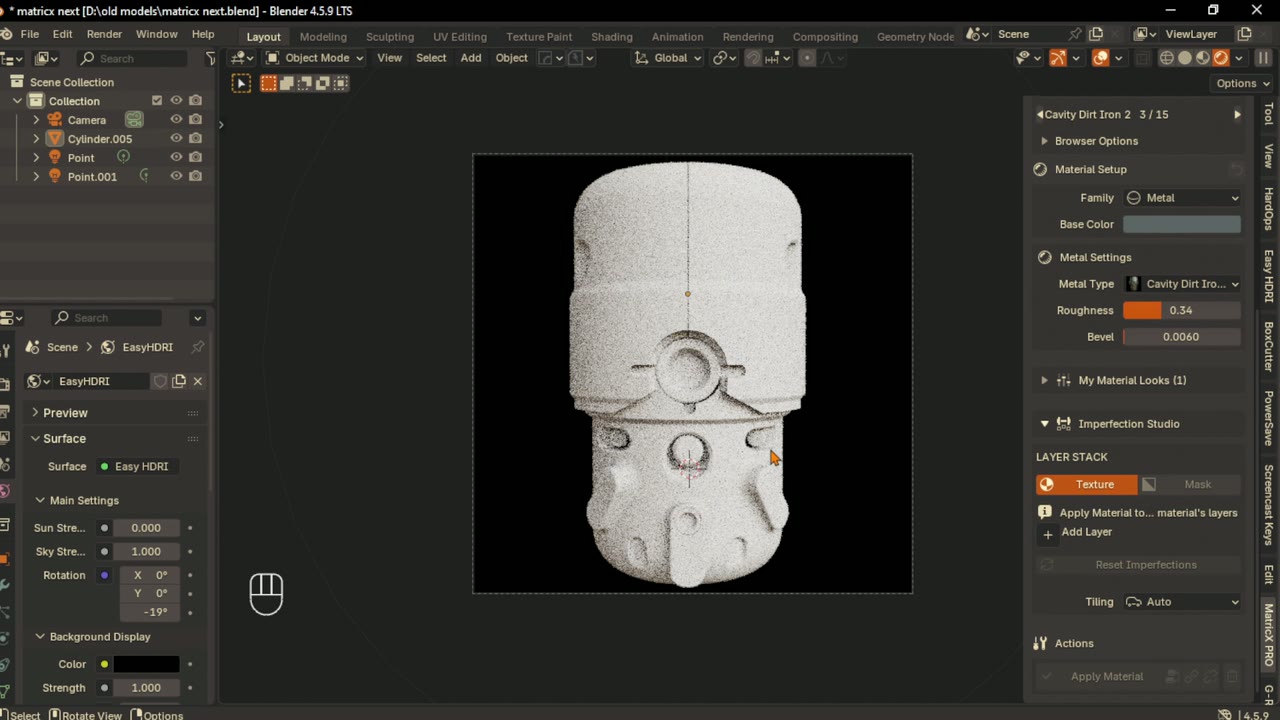
- Select the mesh, press N and open the MatricX PRO tab.
- Pick a Family (for example Metal), click a material in the collection, then click Apply Material.
- Add imperfection layers — Edge Wear, Dirt, Rust or any of the 16 types — and tune Amount and Opacity. Paint masks by hand where wear should go.
- Place decals from the Decal pie (Ctrl+Shift+D). Save the result as a Material Look to reuse it on every prop in the set.

MatricX Bake
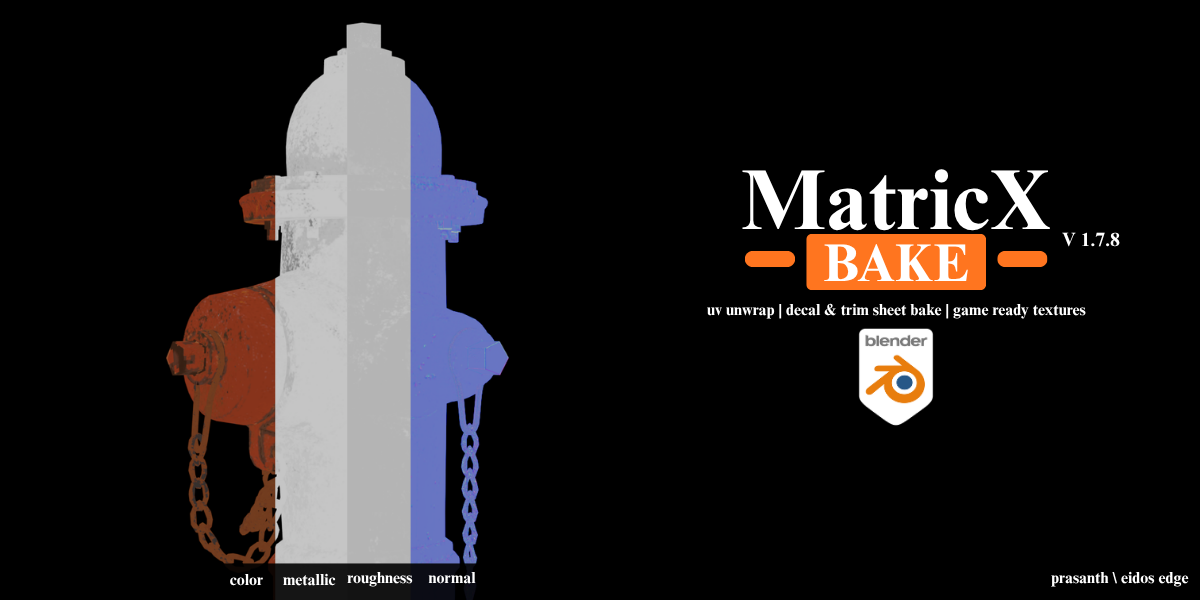
The panel is numbered in the order you work: 1 Prepare UVs > 2 Bake Maps > 3 Decals > 4 Combine > 5 Final Bake > 6 Export. Steps 3–6 are optional.
- Select the object or collection, press N and open the MatricX Bake tab.
- Prepare UVs if the model has none, or to share one atlas across several objects (One Texture Set).
- Choose the maps under Material Bake, click Check, then Bake. Click Setup Baked Material to see the result.
- Placed decals? Bake them in step 3, then Combine and Final Bake. No decals? Go straight to export.
- Game Asset Export packages the model and textures as FBX or GLB for Unity, Unreal or Godot.
05Shortcuts
| Shortcut | What it does |
|---|---|
| Ctrl+Shift+H | Handy menu (3D View, Object or Edit Mode) |
| Shift+Alt+R | Smart Loop |
| Tab | Safe Edit: applies the scale, then enters Edit Mode (on by default) |
| Esc / right-click · F9 | Cancel a Handy drag tool · its options afterwards |
| N | Sidebar with the MatricX PRO and MatricX Bake tabs |
| Ctrl+Shift+M | MatricX Viewport pie (swatches, random colours, link and separate) |
| Ctrl+Shift+D | MatricX Decal pie |
| Ctrl+Shift+T | MatricX Trim Sheet pie |
Change Handy's hotkeys in Edit > Preferences > Handy: click a hotkey and press the key you want.
06Tips for working across all three
- Apply scale before you texture or bake. Safe Edit on Tab does it for you, so tools, materials and bakes all work at the real size.
- Bake understands MatricX PRO. It has built-in support for MatricX PRO materials, all 16 imperfection types, its glass and its trim sheets — and it bakes any other Blender material too.
- Your UVs stay yours. If the layout isn't safe to bake, Auto-Fix Bake UVs creates a separate
MX_BakeUVmap and leaves your original UVs untouched. - Many parts, one texture set. Bake a whole collection into one shared atlas with One Texture Set — ideal for game props.
- Live cutters. Handy keeps its cutters in a hidden
Cutterscollection; show it in the Outliner to adjust any cut later. - Keep backups. Save a copy of your project before a big bake or before updating Blender or an add-on.
07Your tier, licence & support
Every tier includes all three add-ons. Higher tiers add support and services:
Creator
- Handy, MatricX PRO and MatricX Bake
- Email support for 1 artist
- Lifetime updates
Pro
- Everything in Creator
- Priority email support
- Insider tips & workflows
Studio
- Everything in Pro, for up to 10 artists
- Onboarding for your team
- Custom workflow advice
- Early access to new features
Enterprise
- Everything in Studio, for your whole organization
- Custom feature requests
- Direct roadmap input
- Your studio featured in our showcase
Licence
- The add-on code of Handy, MatricX PRO and MatricX Bake is GPL-3.0. You are always free to share and modify the code under the GPL terms. Tiers buy support and services, never permission to use the code.
- The MatricX asset files (materials, textures, decals) are not GPL. Use them in any personal or commercial work, but don't share, resell or re-upload them as files or repackage them as a library. See
ASSET_LICENSE.txt.
Support
- Email contact@eidosedgestudio.com. Standard email support: we reply within 48 hours; priority email support: within 24 hours.
Full terms: eidosedgestudio.com/MatricX-Pro-Page/terms.html
08Updates & full manuals
Lifetime updates are included. When a new version is out, download it again from the store you bought from (your Gumroad library or your Blender Market account) and install it over the old one the same way.
| Resource | Where |
|---|---|
| Handy — every tool in action | eidosedgestudio.com/handy.html |
| MatricX PRO user guide | eidosedgestudio.com/MatricX-Pro-Page/docs (also the PDF in your download) |
| MatricX Bake user guide | eidosedgestudio.com/MatricX-Bake-Page/MatricX-Bake-User-Guide.html |
| Tutorials & update news | youtube.com/@MatricX-blender |
| Newsletter (new releases) | eidosedgestudio.com |
| Support | contact@eidosedgestudio.com |